![V-logo_new.png]](https://help.veremark.com/hs-fs/hubfs/V-logo_new.png?height=40&name=V-logo_new.png)
Goal
The goal of this feature is to enable the export of all candidate files—PDF reports, individual check reports, and additional documents—for one or multiple selected candidates. These files will be immediately available for download.
Key Benefits:
- Convenience: Download supporting documents along with the reports.
- Efficiency: Quickly obtain necessary documents without manual compilation.
Option 1: Download a Report for an Individual Candidate
- Navigate to the Requests tab.
- Click on the candidate whose report you would like to download.
- Click Download Full Report.
Option 2: Download Reports in Bulk
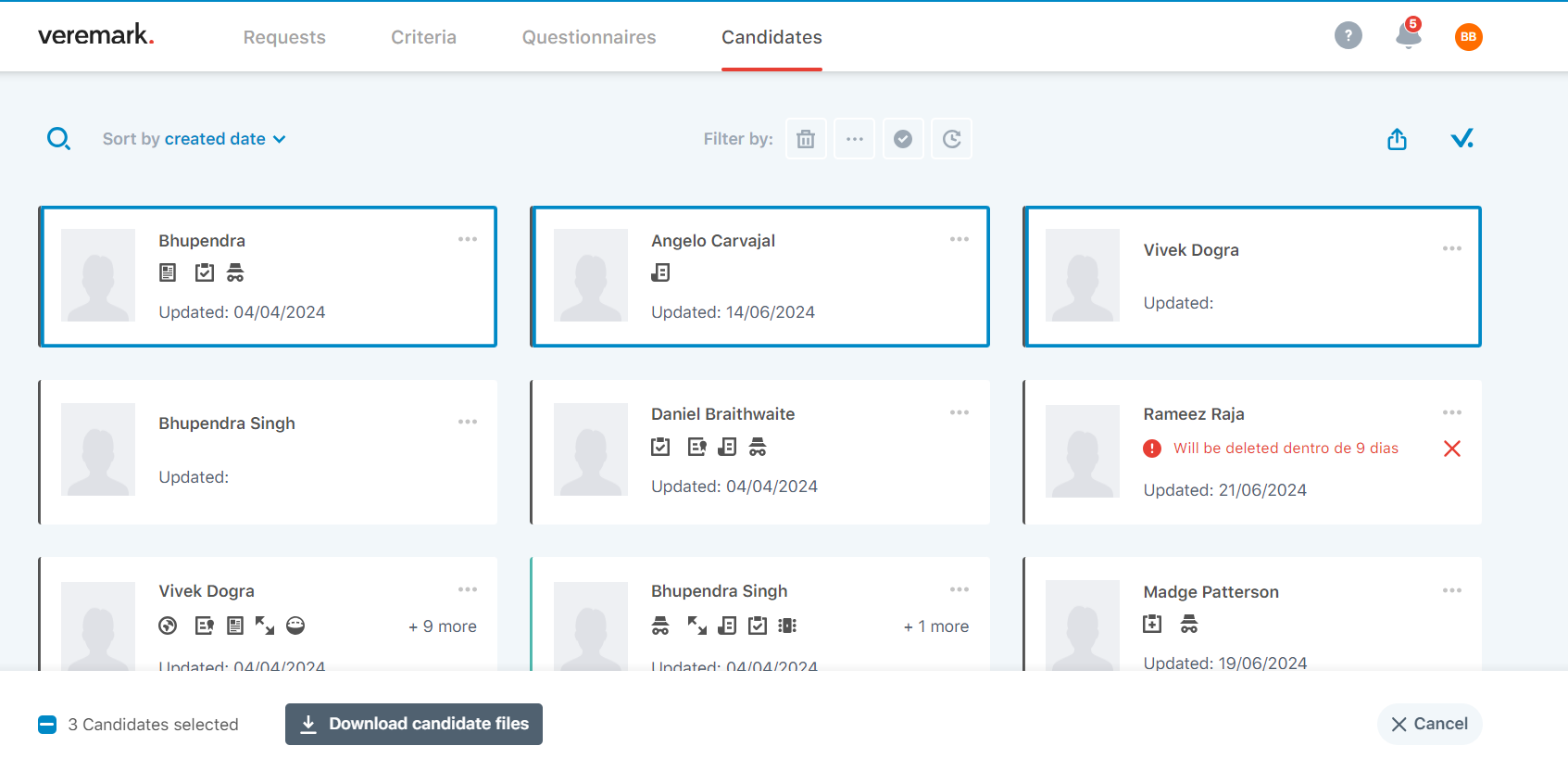
- Navigate to the Candidate tab
- Find the candidate whose report you want to download, click the three-dot menu next to their name, and select Select.
- Once you have selected one candidate, select additional candidates by clicking on their names.
- Click Download candidate files.
Note: When selecting more than 3 candidates, the reports will be sent via email as zip file rather than downloading immediately due to the larger size of the files. Open the zip folder. Inside you will find a folder per candidate, with each request and associated pdf reports and additional documents.
Option 3: Alternate Method for Download Reports in Bulk
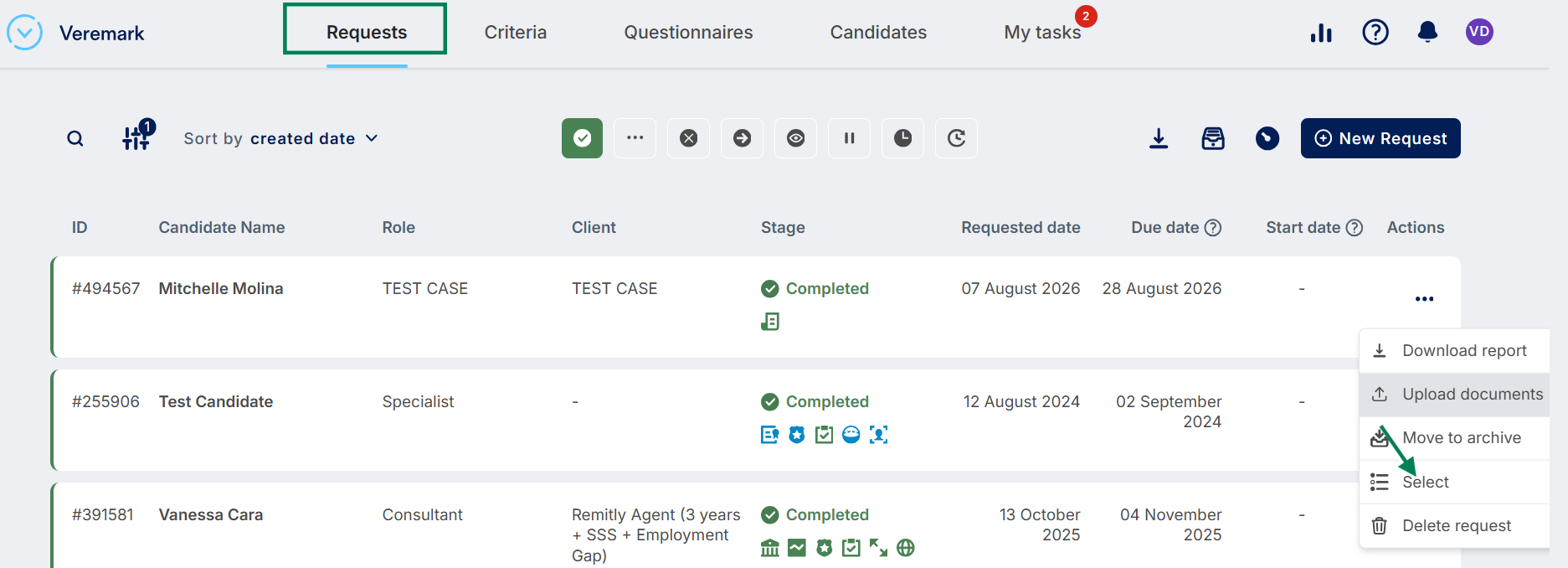
- From the requests page.
- Find the candidate whose report you want to download and click the three-dot menu under Actions.
- Select Select from the menu.
- You can then select multiple candidates whose reports you want to download.
- Click on "Download reports”
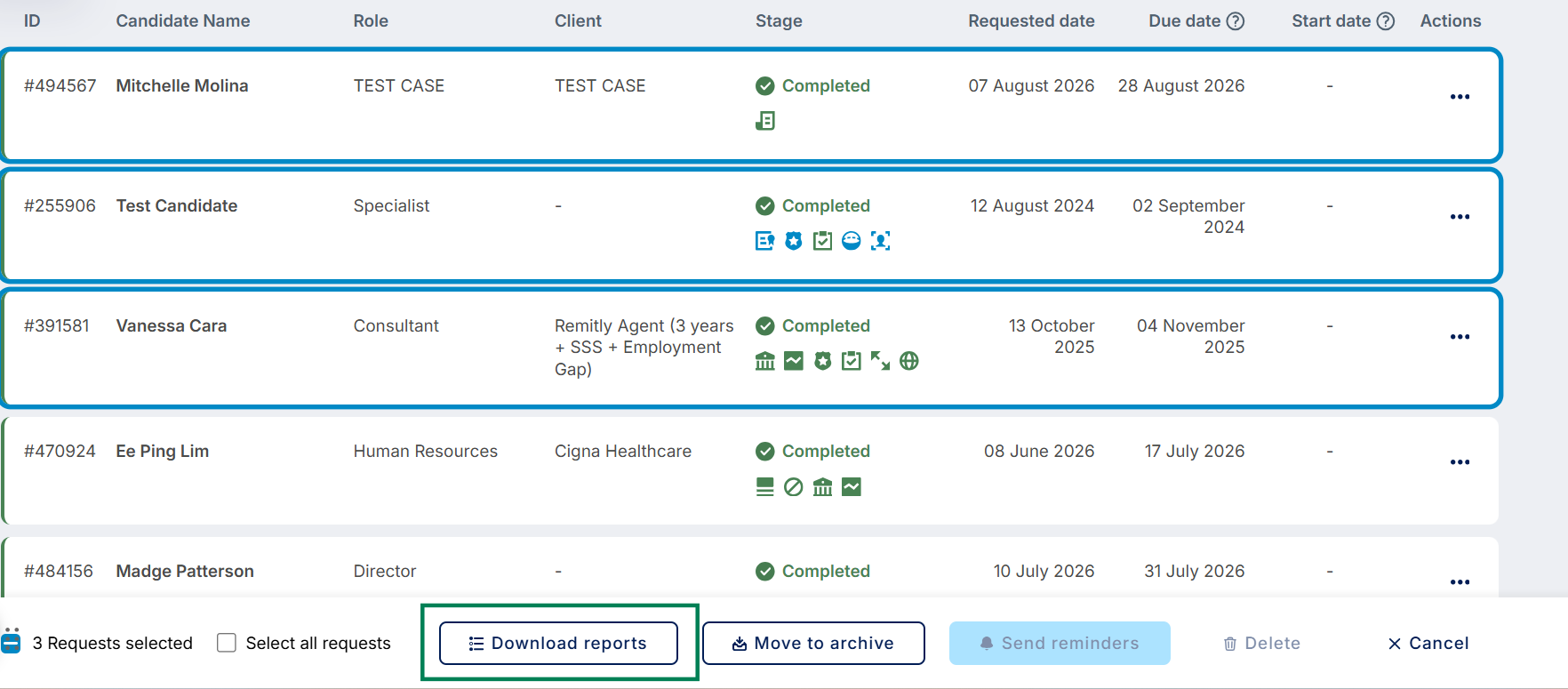
Note: When downloading full reports from the Request page, you can download up to 10 candidates at once. If you select more than 10 candidates, the reports will be compiled into a ZIP file and sent to you via email